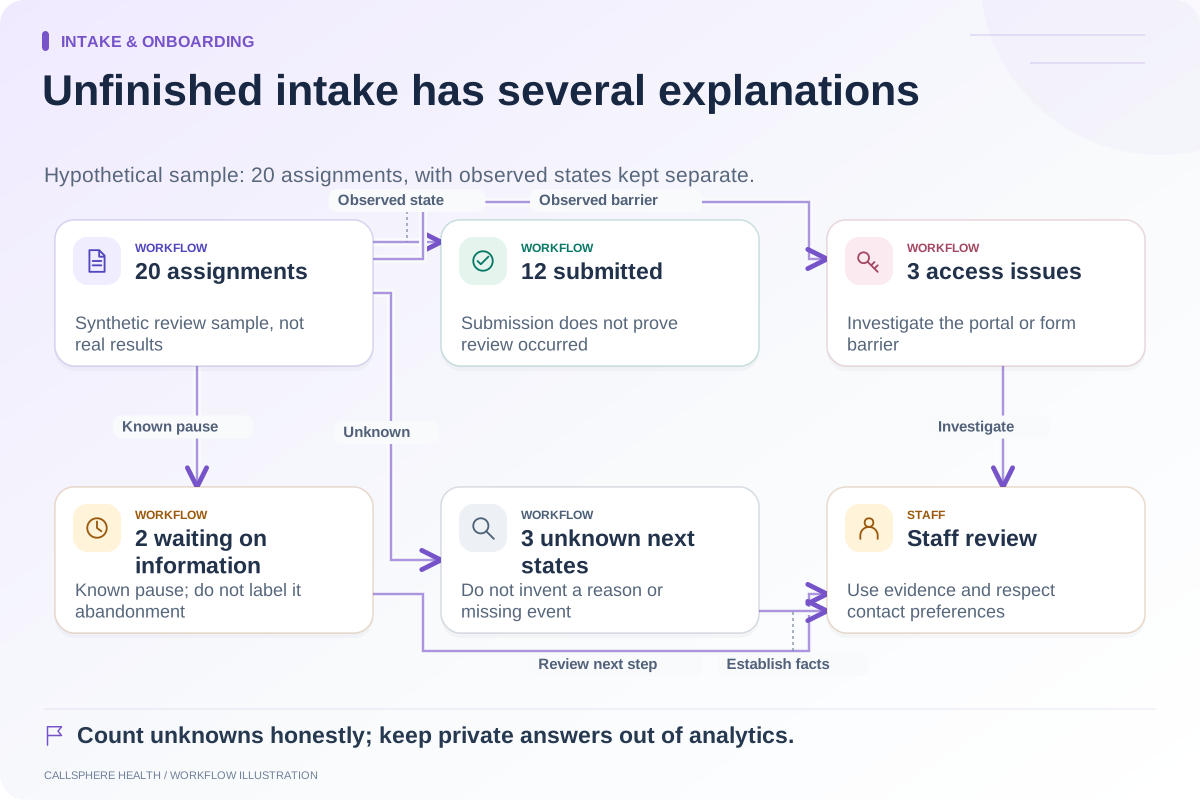
An intake process should provide a usable route when a person cannot complete the standard form. Improve instructions and controls, test common access methods and give staff an approved assistance workflow. Do not assume an unfinished form reflects unwillingness to engage with the practice.
Accessibility is broader than whether the page opens. The person must understand the task, move through it, correct mistakes and know what happened after submission. A practice owner can inspect these basics while arranging qualified accessibility review where needed.
Review the form as a task
Begin with the next action: open the invitation, identify the required information and submit or save through the supported process. Ask a tester to explain each step in their own words using synthetic information.
The W3C forms tutorial covers labels and instructions. Its preliminary accessibility checks also address keyboard use and error handling. These checks are useful starting points; passing a short checklist is not a complete accessibility certification.
Use this owner-friendly checklist
| Area | Practical check | Problem to record |
|---|---|---|
| Labels | Can the tester identify the purpose of each field? | Ambiguous or missing field names |
| Required items | Is the requirement explained before submission? | Surprise errors or unclear optional fields |
| Keyboard | Can the tester reach and operate controls without a mouse? | Trapped focus or unreachable action |
| Mobile | Can the task be completed on a narrow screen? | Hidden buttons, clipped text or difficult uploads |
| Errors | Does the message explain what to correct? | Generic failure with no next step |
| Progress | Is the saved or submitted state understandable? | Uncertainty about whether work was lost |
| Assistance | Is an approved contact route visible? | No alternative when the form cannot be used |
Record the exact task and observed obstacle. “The page is inaccessible” is less useful than “the keyboard cannot reach the submit control after the last field.”
A hypothetical assistance path
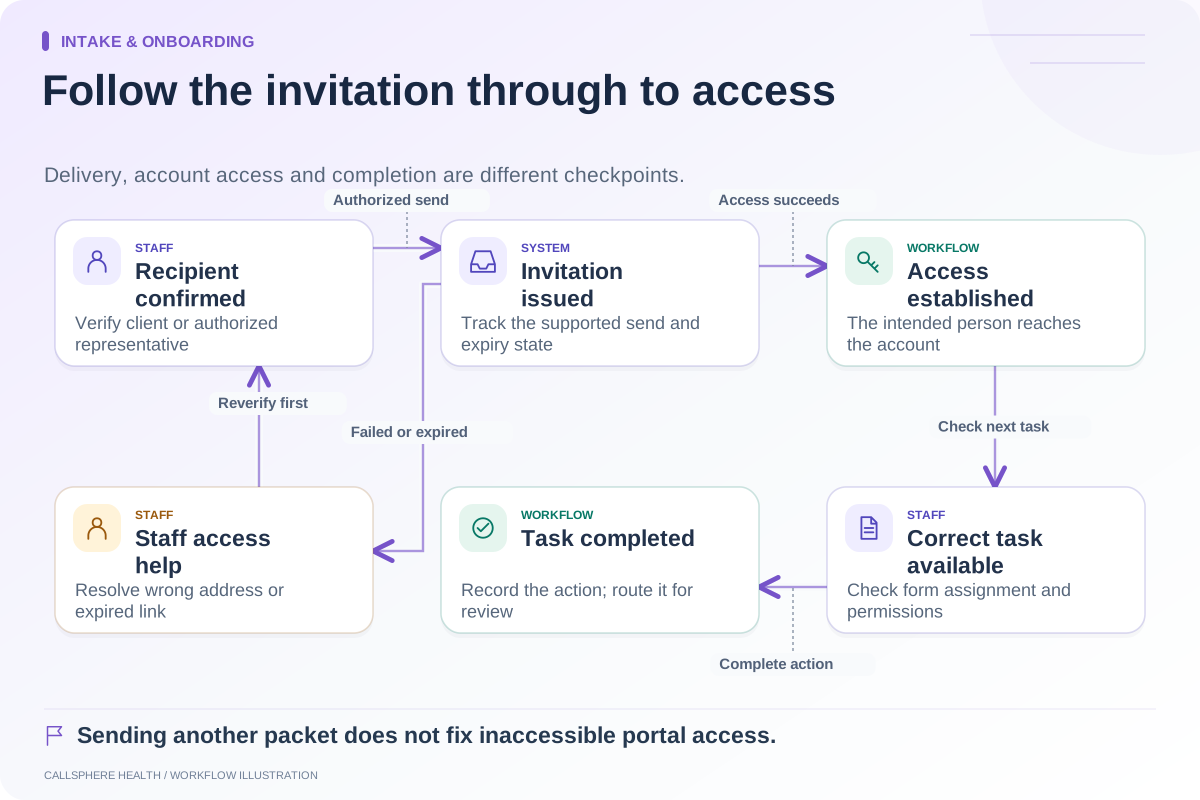
A client can open the portal but cannot complete a document using the available device. Staff confirms the administrative access issue through the approved process and offers the practice’s supported alternative. That might involve assisted completion or another professionally reviewed method.
Staff records what was completed, what still needs the client’s action and who is responsible for any review. Assistance does not mean guessing answers, signing for someone without authority or converting a clinical question into an administrative interpretation.
The example is a workflow design proposal, not a statement that every EHR provides the same alternative. Ask the vendor to demonstrate the actual supported path.
Make error recovery specific
If a date format is required, explain it near the field. If an upload fails, tell the person what they can try or how to obtain help. Preserve completed work where the product supports it and make any session-expiry behavior clear before the person loses a long response.
Test an incorrect entry and an omitted required field. Check whether the error can be found without relying only on color. Read the instruction on a phone and verify that a zoomed view still exposes the action.
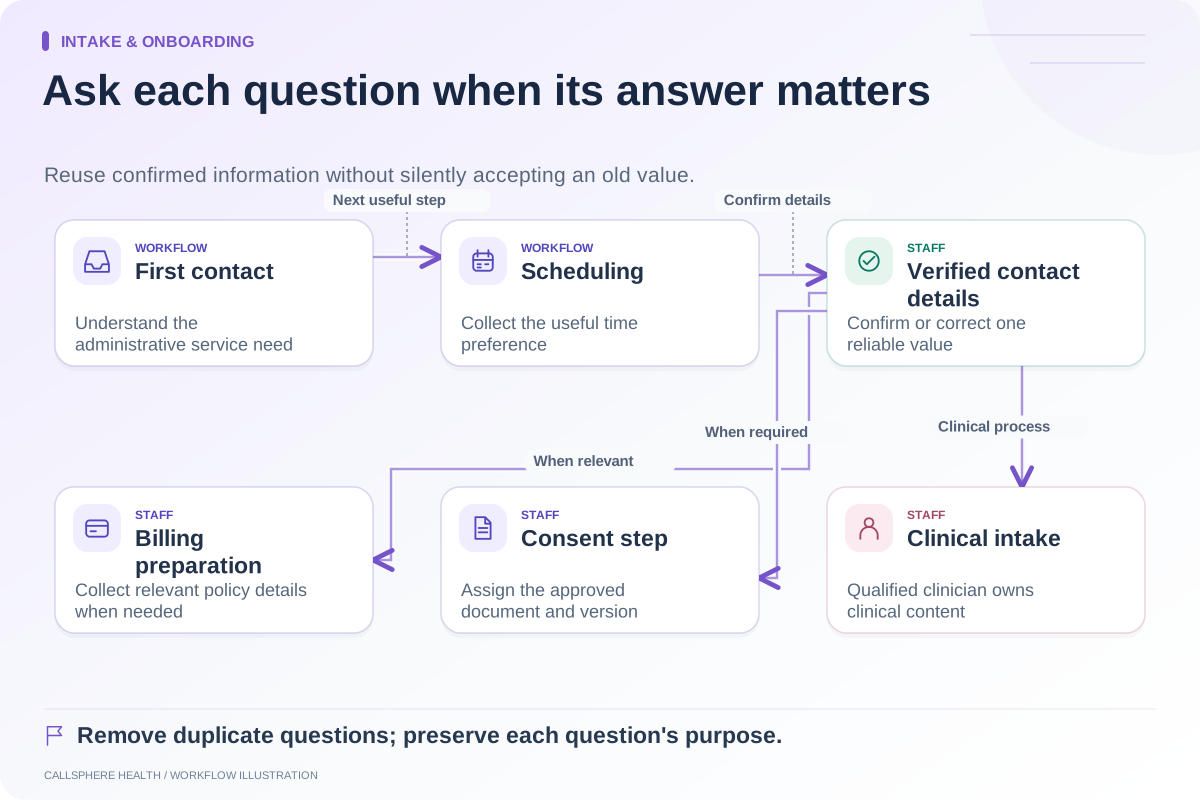
Avoid adding more required fields as the default response to confusing input. Sometimes the better correction is a clearer question or an earlier staff review point.
Give assistance an owner
A help link is useful only if the team knows who handles it. Define the staffed response process and the fallback when that person is absent. Do not promise instant support if the office reviews messages later.
Track repeated barriers in broad categories without copying intake answers into a general support report. Review the form version associated with the problem so a later fix can be evaluated accurately.
Evaluate the CallSphere process
CallSphere’s practice platform includes portal and intake tools, with configuration and staff responsibilities described on the capabilities page. Ask for a demonstration of keyboard completion, a narrow-screen form and the staff process when a synthetic client cannot finish.
The purchase question is whether the practice can provide a clear, supported next step for that person. A smooth demonstration for one user does not establish usability for everyone.
Continue the workflow
Explore intake & onboarding: Shorten administrative intake without losing needed information · Make patient portal invitations easier to complete · Find where prospective clients abandon intake.
Research reviewed September 9, 2026. Organizational authorship: CallSphere Health. Examples are hypothetical; this is operational guidance, not individualized clinical, legal or billing advice.