A patient portal invitation succeeds when the intended person gains the appropriate access and can complete the next task. Sending the email is only the first event. Track delivery problems, expired invitations and access questions separately so the front desk knows which action is actually needed.
Portal access is part of intake, but it deserves its own workflow because an invitation can fail before any form is visible. Repeatedly sending paperwork to an inaccessible account does not resolve that problem.
Define the invitation lifecycle
| Stage | What staff should be able to see | Next step if incomplete |
|---|---|---|
| Contact confirmed | Intended recipient and approved contact route | Verify details through the practice process |
| Invitation issued | Invitation event and expiry information where supported | Inspect a failed or suppressed send |
| Access established | Account access completed through the intended process | Offer approved account help |
| Task available | Correct forms or documents visible | Check assignment and permissions |
| Task completed | Submission or action recorded | Route missing or unclear items for review |
Use these states as an evaluation checklist. A vendor may expose different labels or may not provide evidence for every stage. Record those limitations instead of assuming the missing state occurred.
Start with the correct recipient
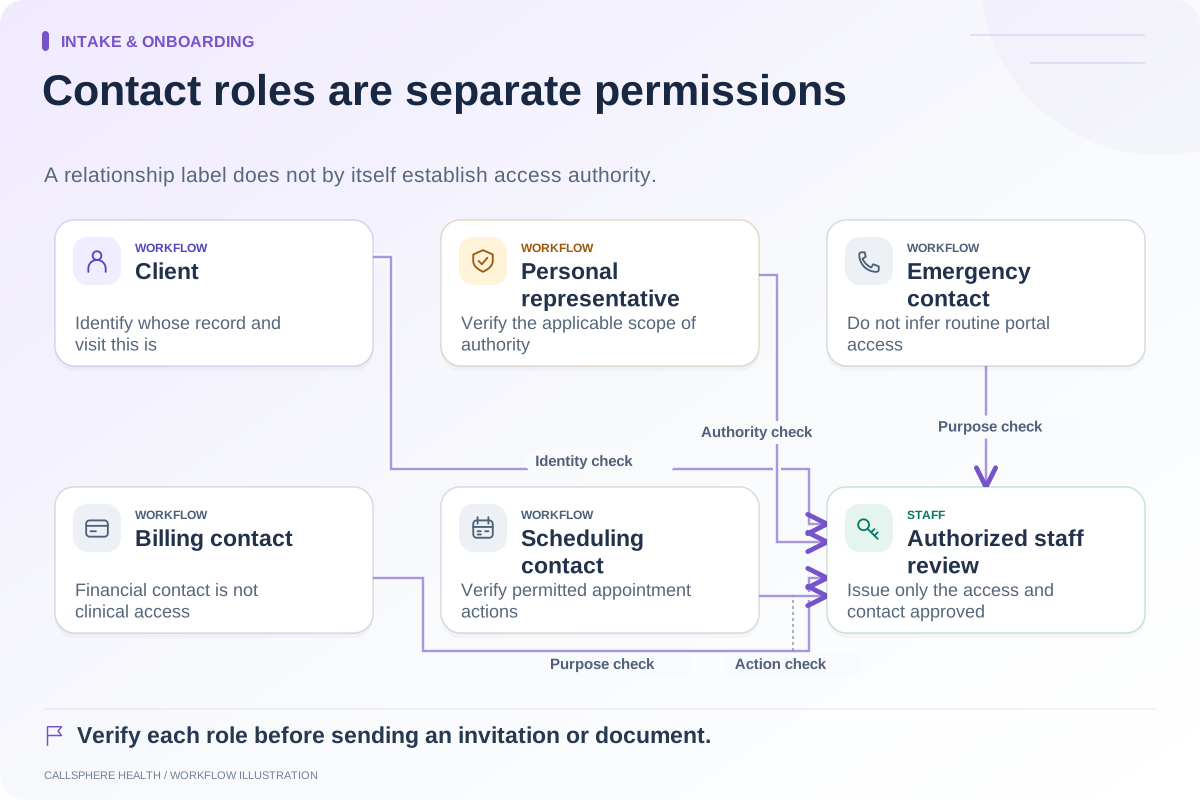
Confirm whether the invitation belongs to the adult client, an authorized representative or another permitted contact. A payer, emergency contact and portal user are not interchangeable roles. Avoid using the most recently entered email as the default without checking its purpose.
When someone reports an incorrect address, follow the established verification process before changing it. Do not ask for passwords or have staff log in as the client to prove that access works. A supported assistance procedure should preserve the distinction between staff actions and client actions.
A hypothetical failed invitation
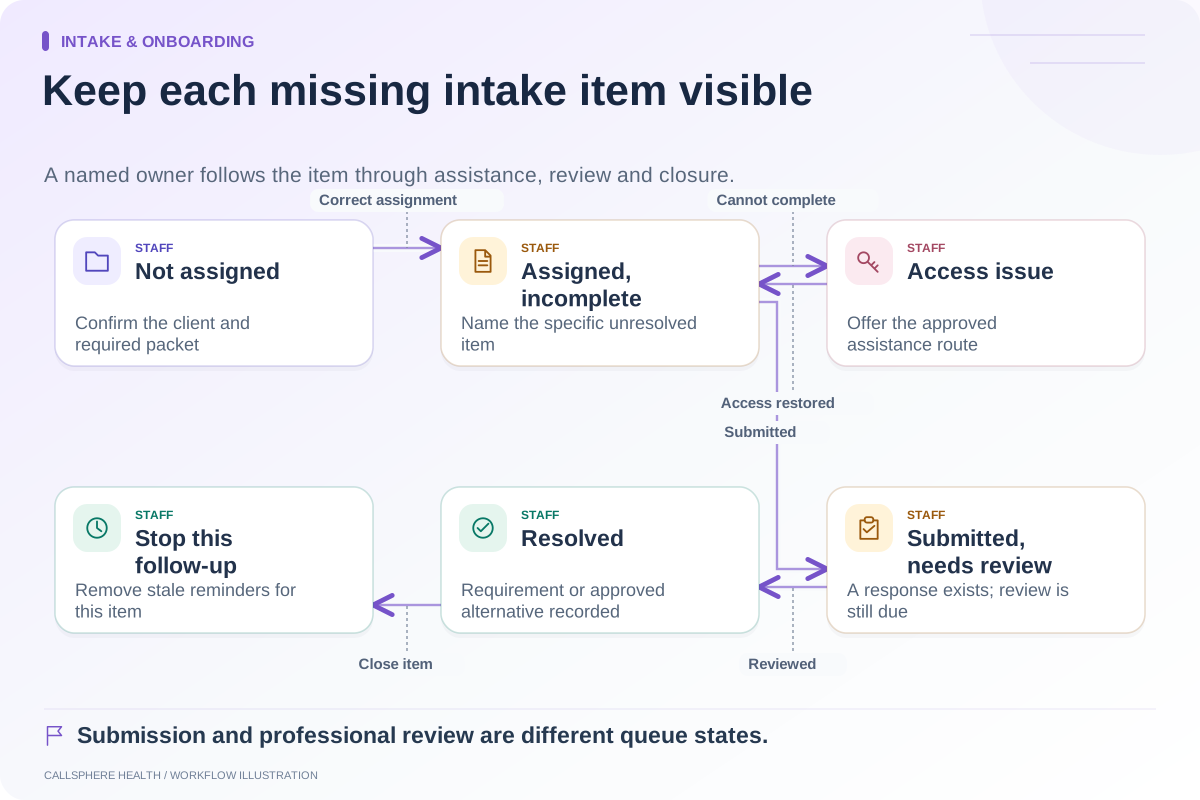
A new client says no portal email arrived. Staff checks the invitation record and finds a delivery failure caused by an address entry error. After approved verification, staff corrects the address and follows the supported reissue process.
The task stays open until the client can reach the intended next step or another agreed arrangement is documented. If the initial invitation can still be used, staff follows the product’s revocation or expiry procedure rather than assuming a new email invalidated the old one.
Now test a different failure: delivery succeeded, but the link is expired. The useful response is access help through the approved workflow, not another copy of the intake packet. The failure category changes the action.
Keep help instructions practical
Explain the next step in plain language: where to begin, whom to contact and what not to share. Keep instructions short enough to read on a phone. Avoid asking the person to describe clinical information in a general support email.
HHS email guidance discusses safeguards and patient communication preferences. Your practice should review how those considerations apply to invitation content and support channels.
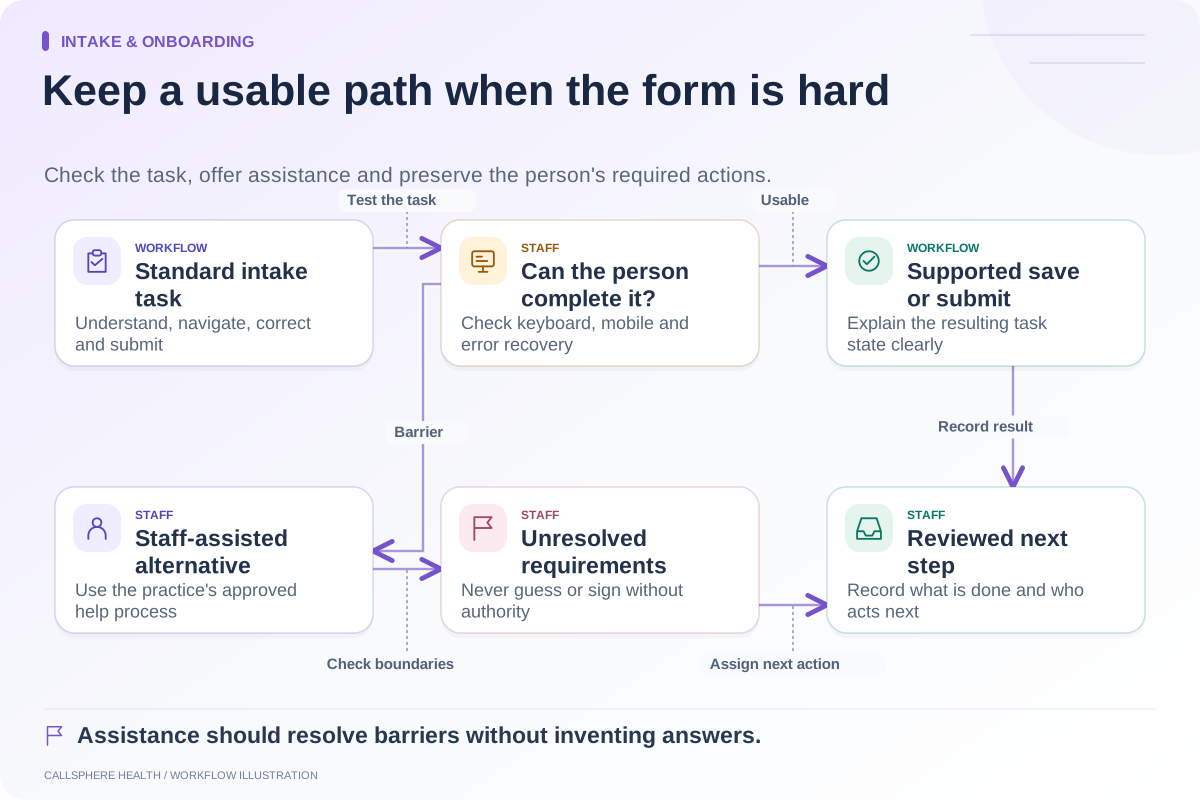
An accessible alternative matters when someone cannot use the portal. Staff should know the approved assistance path and document the agreed next action. Portal activation is not the only possible route to resolving an intake barrier.
Measure the point of failure
Count invitations issued, failed sends, access-help requests and successful task completions separately. A high delivery rate with many access tickets suggests a different issue from widespread delivery failures. Keep any analysis within approved systems and avoid adding third-party tracking to private portal pages without appropriate review.
Sample the support notes for repeated confusing phrases or outdated instructions. Fixing one misleading instruction may be more useful than adding another automated reminder.
Evaluate the CallSphere handoff
CallSphere’s practice platform includes portal and intake workflows. AI can answer administrative access questions and record follow-up requests, but staff verification remains important; see capabilities and limitations.
In a synthetic demo, request an invitation, simulate an incorrect contact detail and test an expired-link path. Ask where staff sees the unresolved problem and how the correct recipient ultimately reaches the assigned form. That evidence tells you more than an invitation screenshot.
Continue the workflow
Explore intake & onboarding: Follow up on incomplete intake with a clear owner · Set up guardian and contact information carefully at intake · Make the intake process usable when a form is difficult.
Research reviewed September 9, 2026. Organizational authorship: CallSphere Health. Examples are hypothetical; this is operational guidance, not individualized clinical, legal or billing advice.