Onboarding an employee into practice software should connect their job responsibilities to an approved account and a small set of demonstrated tasks. Creating a login is one step. The practice also needs to confirm which work the person owns, what they can access and how they ask for help.
This guide proposes an administrative access checklist. It does not replace the practice's employment, privacy or security policies, and it does not assume that a vendor's default role is appropriate for every employee.
Start with an access request tied to the job
The manager should identify the employee's role, location or team scope, start date, supervisor and required workflows. Include any temporary duties and an end date for temporary access. A request for “the same access as the last person” can carry forward permissions that no longer match the job.
Ask the approver to distinguish ordinary task access from sensitive administrative authority. Changing billing settings, managing users and signing clinical documentation are different responsibilities. The selected account should reflect the person's authorized work rather than the convenience of a broad role.
Use a first-week access checklist
| Check | Evidence to retain | Owner |
|---|---|---|
| Account created | Named account and intended role | Authorized administrator |
| Scope reviewed | Approved team or practice access | Manager |
| Sign-in completed | Employee can use the approved authentication process | Employee and trainer |
| Normal task demonstrated | Synthetic workflow reaches its expected state | Trainer |
| Restricted task checked | Employee cannot perform an unauthorized action | Administrator |
| Work assigned | Inbox, queue or schedule responsibilities are clear | Manager |
| Help route known | Employee can report an issue without sharing secrets | Trainer |
Keep the evidence in the approved internal process. Do not put passwords, recovery codes or patient records in an onboarding spreadsheet.
Rehearse the role, not another person's account
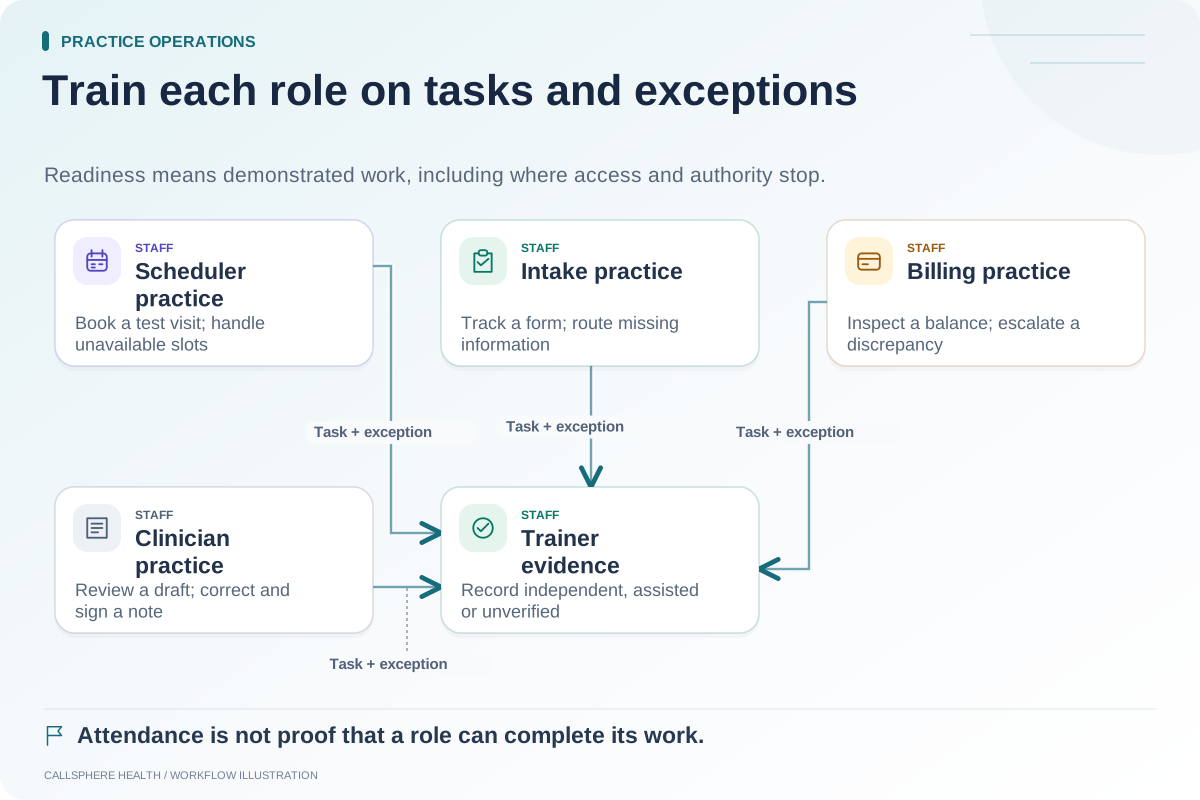
Hypothetical example: A new scheduler receives a training account with the intended permissions. They locate a synthetic appointment, inspect approved booking information and use the defined process for an unavailable slot. The trainer then confirms that a sensitive settings change is unavailable to that role.
Borrowing an administrator's account for the exercise would hide an access problem. The training result needs to reflect what the employee can actually do after their supervisor steps away.
Assign queues that would otherwise remain invisible
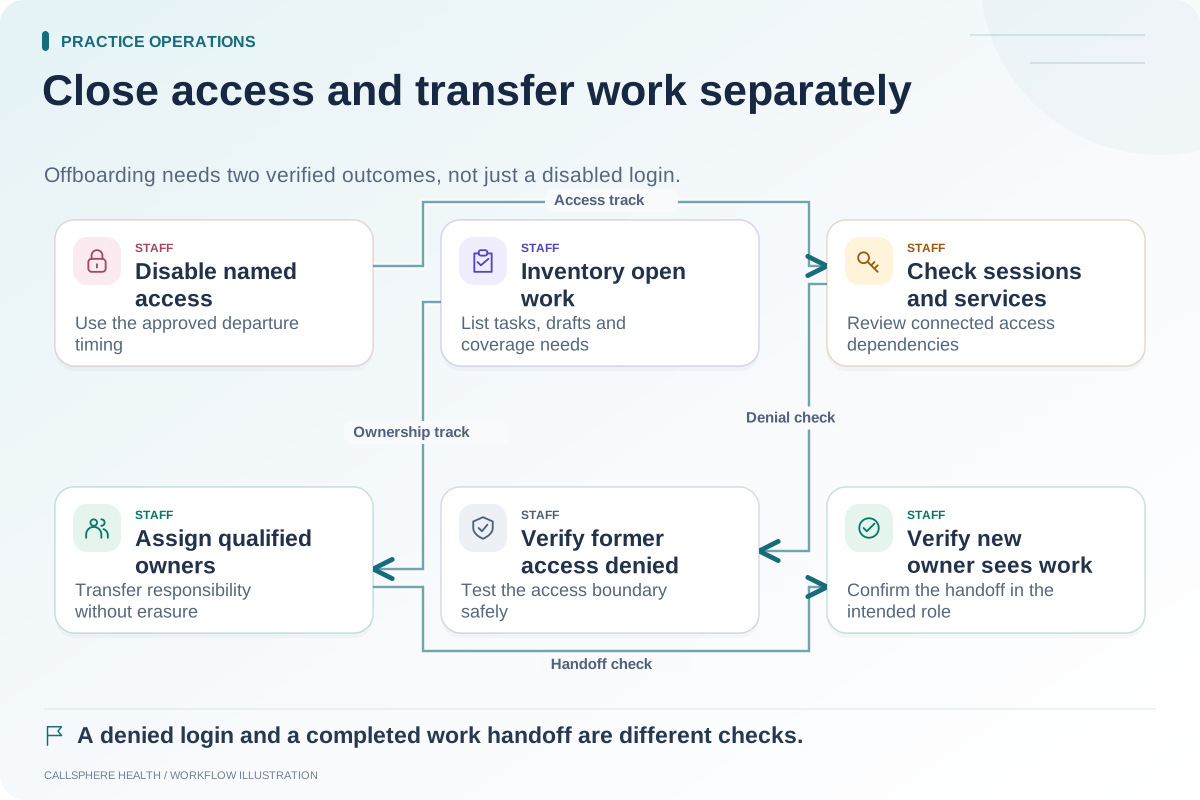
A new employee may have the right permissions but no clear ownership of incoming work. Name the queues they monitor, the expected coverage hours, the backup person and the state that indicates a task is complete. Include any transition from a previous employee's responsibilities.
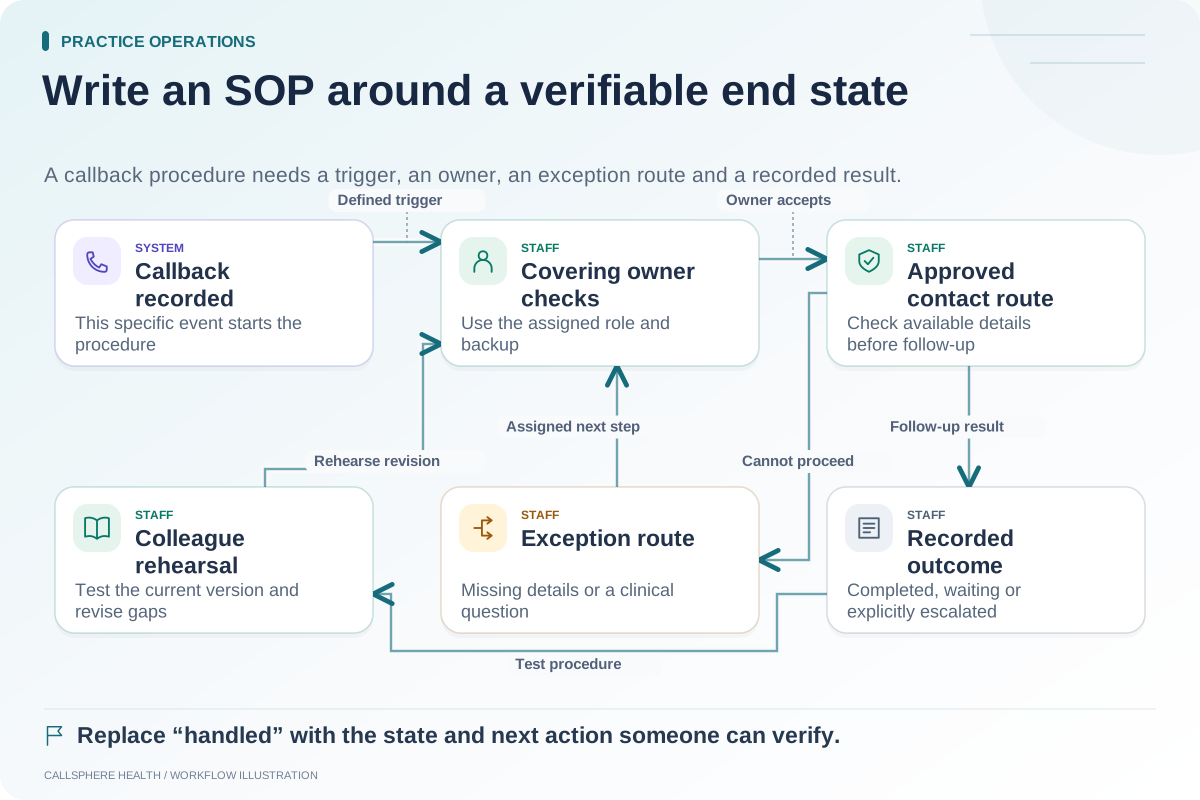
For AI-assisted workflows, explain where callback requests, failed booking attempts and unanswered administrative questions go. A handoff request is not proof that the new employee has seen it. Demonstrate the available queue or contact route with synthetic activity.
Review access after the first week
Ask whether the employee had to request help for ordinary tasks, whether any unnecessary permissions were discovered and whether task ownership is clear. Adjust access through the authorized process, documenting the reason. Avoid solving every problem by adding a broader role.
HHS Security Rule guidance provides background for the practice's access review; checked September 9, 2026. The checklist in this article is a proposed operations tool, not a compliance certification.
CallSphere implements role-based access and tenant scoping, but your actual role configuration should be demonstrated. Review security evaluation questions and capability boundaries before deciding which permissions to assign.
Use role-based training, the workflow SOP template and the offboarding checklist to keep the employee lifecycle consistent. More guides are in practice operations and migration.