A useful welcome message tells a new therapy client what to do next, where to get administrative help and what has actually been confirmed. Keep it short enough to use on a phone and separate the welcome from the detailed clinical intake or consent process.
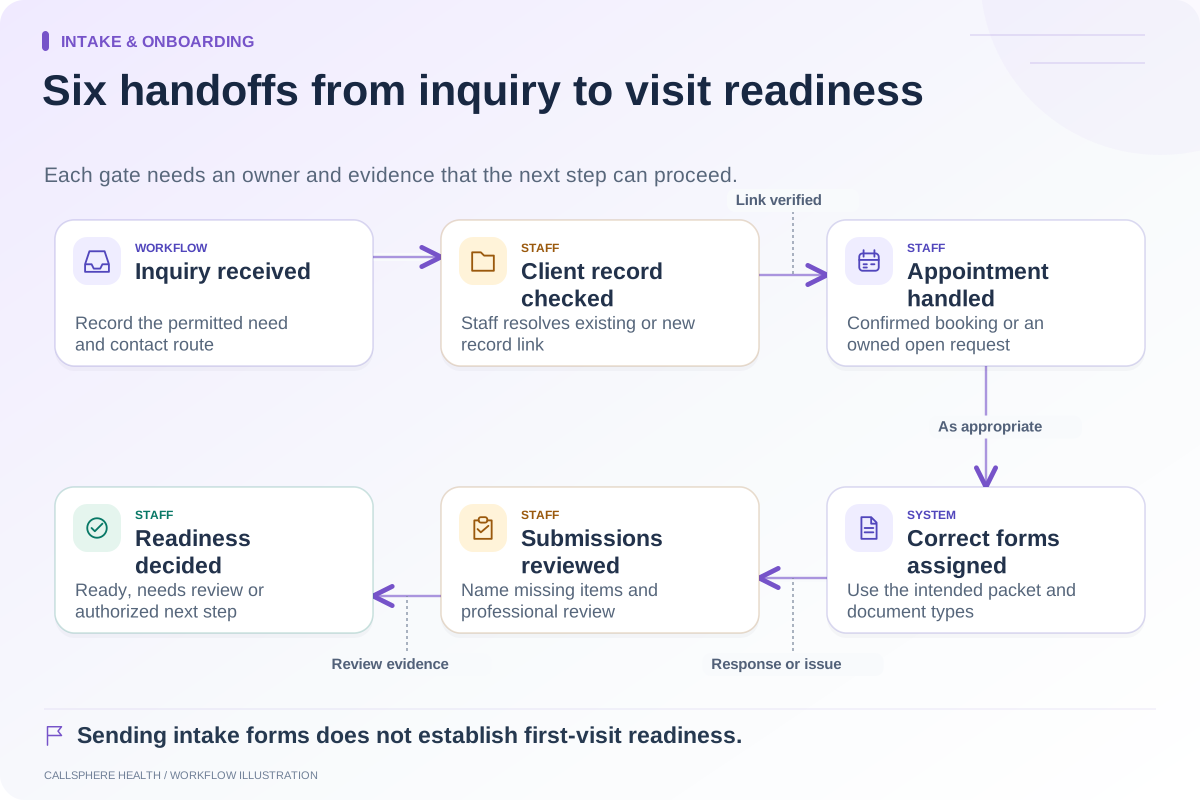
The message should match the workflow state. A person who submitted an inquiry should not receive language implying an appointment is booked. A confirmed booking should not be described as fully ready for care if staff still needs to review the required paperwork.
Choose the trigger first
Decide whether the message follows an inquiry, an accepted appointment or portal activation. These triggers need different wording. Record which system event causes the send and whether staff can preview or suppress it where appropriate.
Avoid a single template that says “everything is ready” in every situation. If one stage fails, the message can become inaccurate even though the template itself has no spelling errors. Review it against the actual state of the record.
Use this message-planning sheet
| Element | Question for the practice | What to leave out |
|---|---|---|
| Current state | Is this an inquiry or confirmed appointment? | Unsupported confirmation language |
| Next action | What is the one useful thing to do now? | A long list of unrelated instructions |
| Access help | How can the person get portal or form assistance? | Requests for passwords or sensitive details by general email |
| Appointment context | Which details are appropriate in this channel? | Unnecessary clinical content |
| Response expectations | When and how does staff review administrative replies? | A promise of immediate clinical response |
| Sender identity | Can the person recognize the practice? | Ambiguous or misleading sender information |
The sheet is an editorial tool. The practice should approve final wording and contact rules for its circumstances.
A hypothetical welcome after booking
An example for an approved channel might read:
Welcome. Your appointment has been confirmed in the practice’s scheduling system. Please use your usual portal access to review the next steps and any assigned paperwork. If you need help accessing the portal, contact our office through the practice contact route. Our team reviews administrative messages during its stated office hours.
Before using it, replace general wording with the practice’s verified instructions. Do not insert a made-up response time, office number or cancellation rule. If the appointment is only a request, change the opening to explain that staff still needs to confirm it.
This example is not a complete clinical welcome packet. The practice’s consent, emergency and care instructions belong in the appropriate professionally reviewed materials.
Explain help without creating a privacy problem
Give the person a way to report an access barrier without sending clinical history in a general reply. Check what happens if someone replies to the sender address: does staff monitor it, or does it return an automated notice?
HHS guidance on email communication discusses safeguards and patient preferences. Review the chosen channel and message content with the practice’s responsible team.
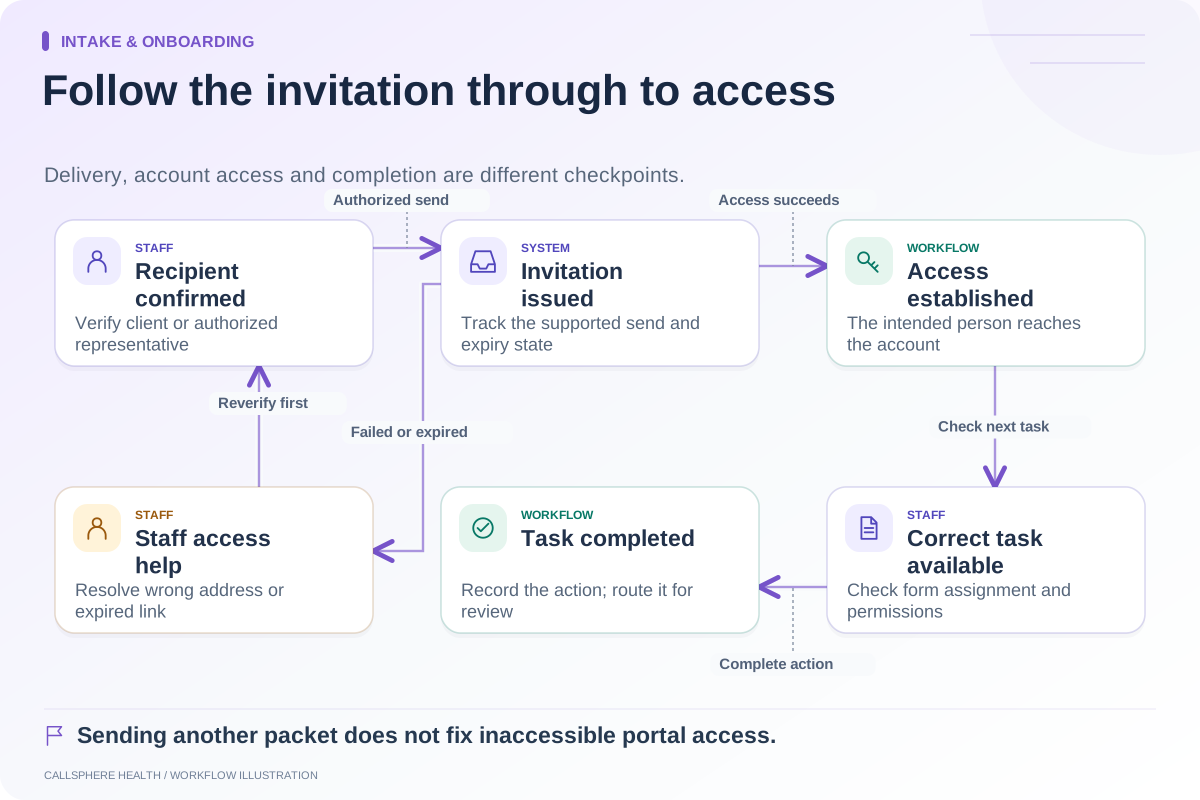
Also check link labels. “Open your practice portal” communicates the action more clearly than a long technical URL. An invitation link and an established portal login may behave differently, so the instruction must match what the recipient actually receives.
Test the message as part of the workflow
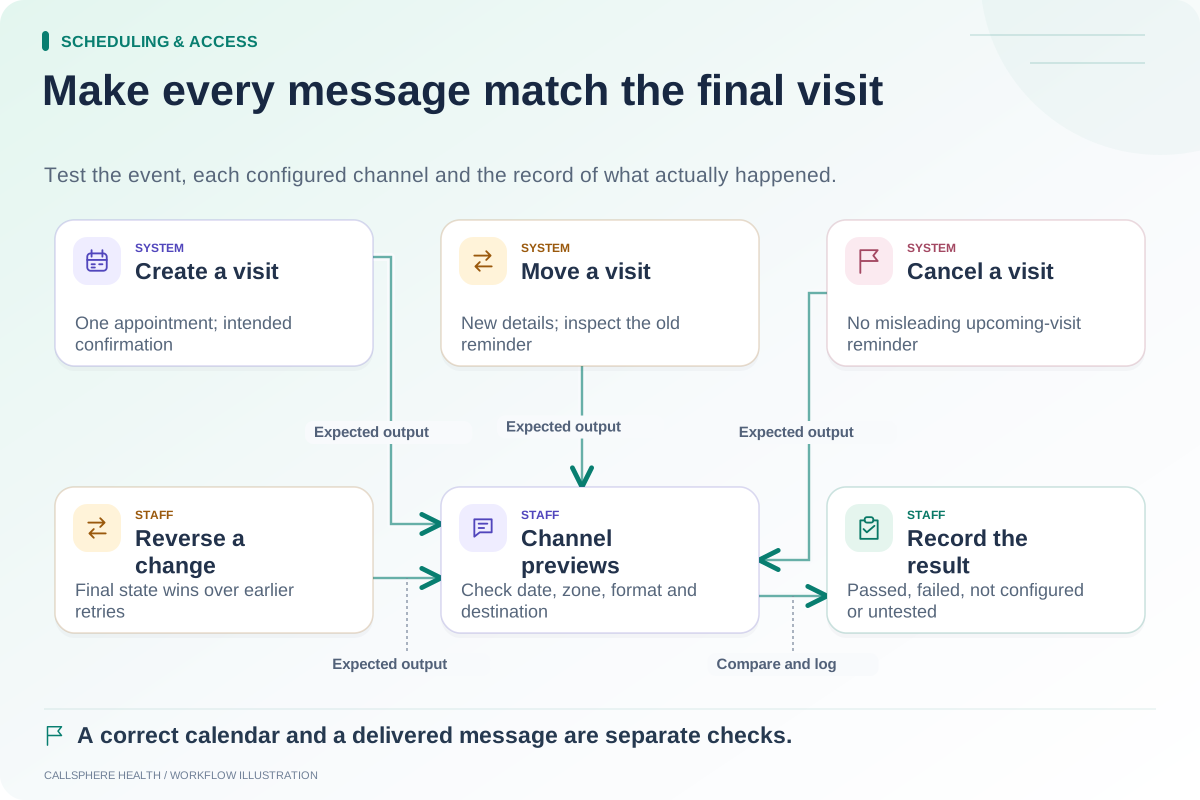
Use a synthetic client to inspect the message on desktop and mobile. Follow the link, confirm the assigned task and deliberately use an expired invitation in a separate test. Check whether staff can identify a failed delivery without guessing from a client complaint.
Then move or cancel the appointment. The old welcome should not cause later messages to repeat obsolete details. A good template cannot compensate for an incorrect send trigger.
Keep CallSphere copy tied to completion
CallSphere’s practice platform supports intake and configured communication workflows. AI can help with routine inquiries and booking, subject to the capability boundaries. Staff confirms the record and next intake steps after AI-assisted requests.
Bring your welcome draft to a demo and ask what exact event would send it. Approve the message only after the team can show that its statements match the resulting appointment and form state.
Continue the workflow
Explore intake & onboarding: Map the therapy intake process from inquiry to first visit · Make patient portal invitations easier to complete · Check every notification after a schedule change.
Research reviewed September 9, 2026. Organizational authorship: CallSphere Health. Examples are hypothetical; this is operational guidance, not individualized clinical, legal or billing advice.