Choose one authoritative system for appointment creation, changes and cancellation, then document how every other calendar reads from or writes to it. A personal calendar, website widget and AI receptionist may all display scheduling information without having equal authority to change it. Calling everything “synced” hides the distinction a practice owner most needs to understand.
The source of truth should be the place staff inspect when two displays disagree. If nobody can name that place, the practice has a coordination problem before it has an automation opportunity.
Draw a calendar authority map
A small table is often more useful than a complicated integration diagram. Complete this worksheet for the actual products and connections in your practice.
| Surface | Reads appointments? | Can write changes? | If it disagrees, check |
|---|---|---|---|
| Main practice schedule | Confirm with vendor | Confirm with vendor | Authoritative appointment record |
| Personal calendar view | Confirm direction and delay | Do not assume | Main practice schedule |
| Website booking flow | Confirm availability source | Request or confirmed booking? | Request and appointment state |
| AI receptionist | Confirm configured access | Which actions are allowed? | Tool result and practice schedule |
| Room schedule | Confirm resource rules | Separate or connected? | Resource reservation |
Record the update direction and expected delay for each connection. A one-way subscription and a two-way integration are different operational arrangements.
A current example of a one-way view
TherapyNotes' scheduling documentation describes viewing its calendar in another application without allowing that application to edit the TherapyNotes calendar. That is not an absence of calendar integration; it is a specific boundary to understand when designing staff habits.
For any vendor, ask whether a change made in an external calendar affects booking availability. Do not infer write access from the fact that an appointment appears on a phone.
A hypothetical conflict after a personal-calendar edit
At a fictional group practice, an employee moves a displayed appointment in a personal calendar and assumes the patient-facing schedule changed. The practice's authoritative appointment remains at the original time. An AI receptionist checking the main schedule correctly sees that original record, while the employee believes the AI is using stale information.
The remedy is not necessarily to force a refresh. Staff first establish which system accepted an actual change. They then correct the authoritative appointment through the approved process and verify downstream displays. If the external calendar is read-only or locally editable without writing back, staff need clear training about that limitation.
This example is hypothetical and does not assert a defect in a named product.
Test reconciliation in both directions
Create a synthetic appointment through the intended staff workflow, then observe it in each connected surface. Change it in the authoritative system and check the update. Next, attempt only those external actions the vendor says are supported. Record what happens rather than assuming symmetry.
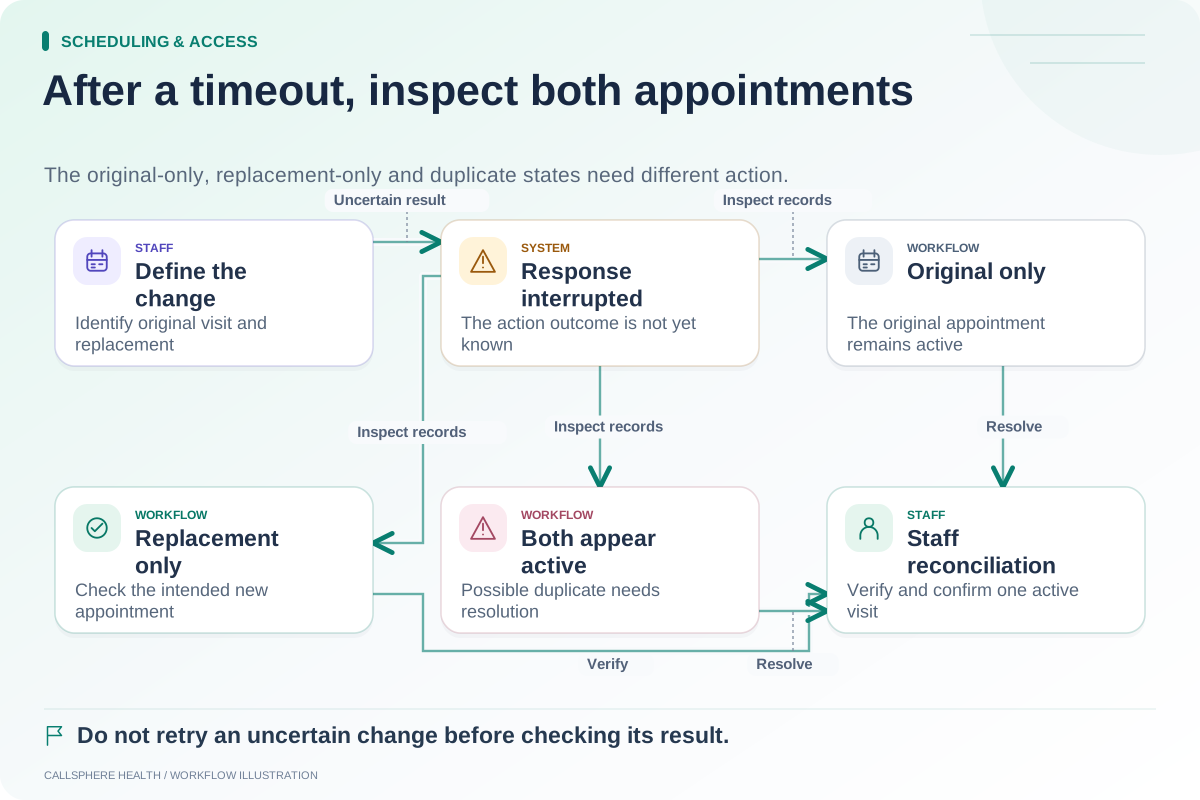
Test a disconnected calendar, an expired subscription and a recently changed appointment. Keep the expected behavior explicit: what becomes stale, what stops being bookable and what staff should tell a caller. For an uncertain action result, follow the rescheduling reconciliation procedure.
Do not use a screenshot as the only verification. A visually correct appointment may still refer to the wrong record, location or time zone. Inspect the details authorized staff use to identify the real visit.
Include constraints beyond the person
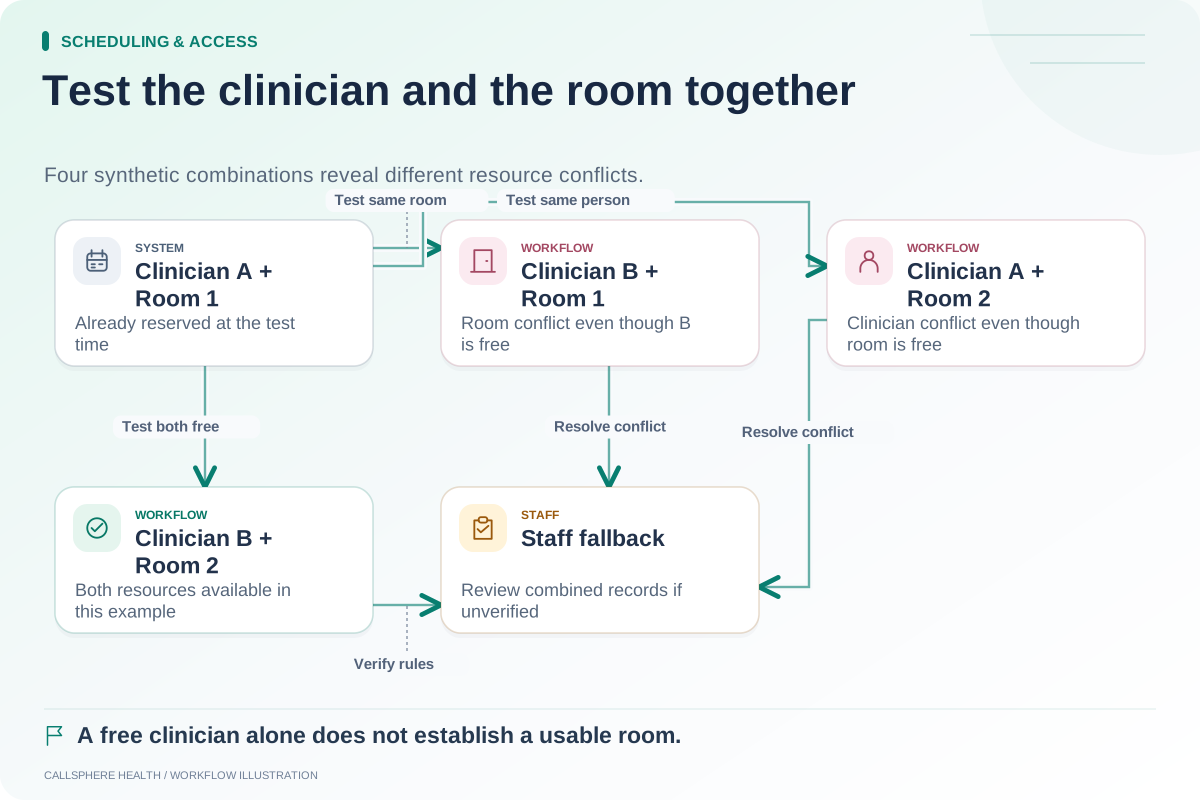
A clinician's free time may still require a room, a specific visit format or a service rule. If those constraints live elsewhere, add them to the map. The room-and-provider guide provides a two-resource test that exposes this gap.
If a required connection is not available, describe the manual control clearly. An administrator may need to reconcile a room calendar or block certain appointment types from online booking. Do not advertise automatic coordination until the combined workflow has been demonstrated.
CallSphere Health's platform connects scheduling with practice operations, and configured AI actions use practice services. Review the verified scope before assuming a particular external calendar or two-way synchronization. In a demo, trace one synthetic appointment through every surface your staff will actually use.
More scheduling evaluation worksheets appear in Scheduling and access.
Sources and product scope checked September 9, 2026.